Assessment
← Table of contents · Students · Reports
What this section is for
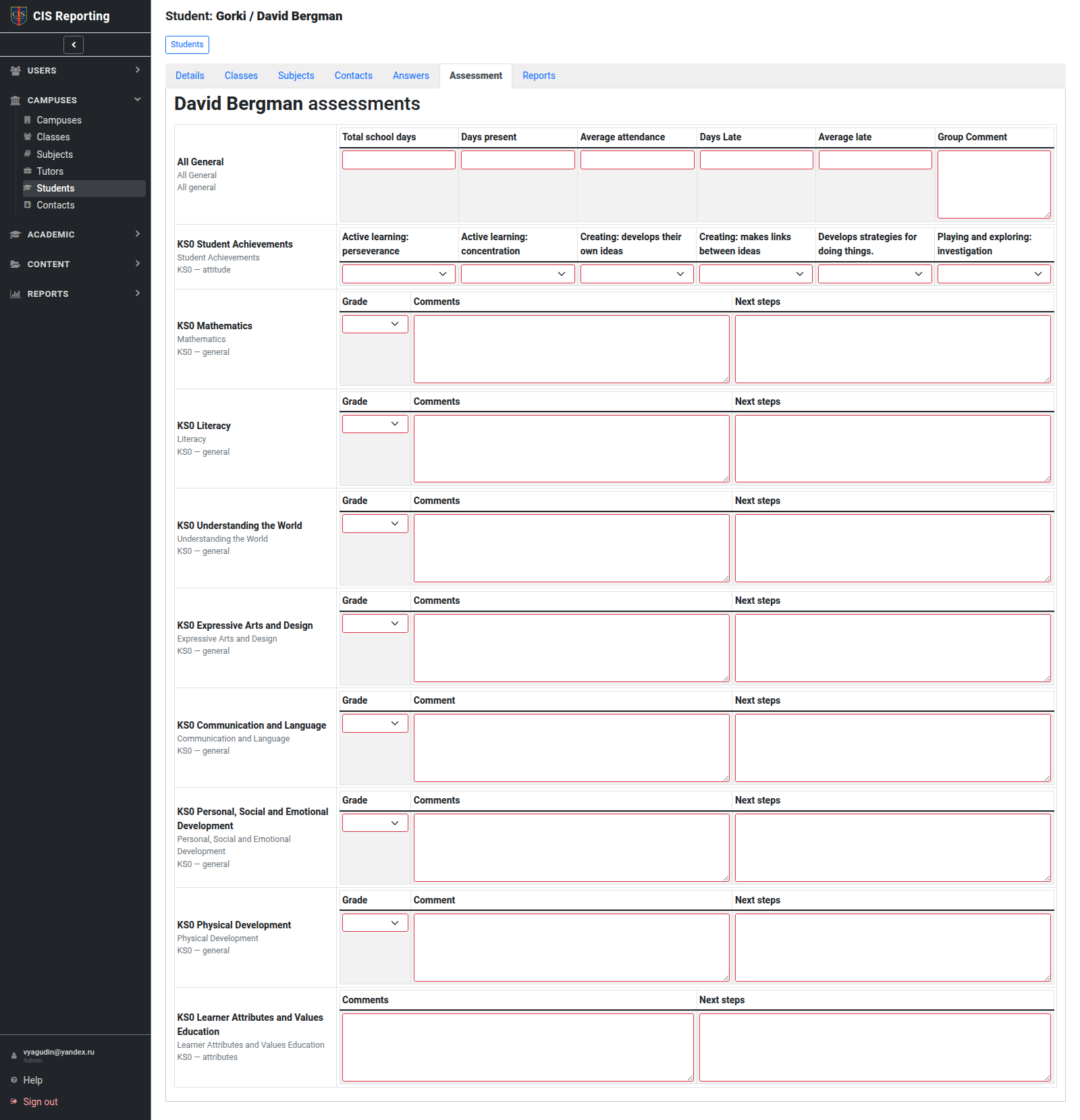
On the Assessment screen a tutor enters answers to question templates (Question Groups) linked to the student’s subjects/classes. That data is later used to generate the PDF report.
How to open
- Students → open the student.
- Assessment tab
or the Assessment button in the list / the Assessments section on a class or subject.
Terms
Answers are stored per term (the same Periods catalogue as reports). Buttons at the top of Assessment switch the term. Changing term shows that term’s answers; it does not overwrite another term.
Question groups and questions can be limited with Show in terms. They appear on Assessment only in the terms you tick. If a whole group is hidden for the selected term, that group is omitted.
If no periods exist, Assessment shows No terms found — create a period under Academic → Periods first.
How to fill it in
- The screen shows the student’s subjects, then question groups and the questions inside them (for the selected term).
- Field types: text, textarea, number, date, yes/no, and a choice from Lists.
- Changes save automatically as you type — a separate Save button is usually not needed.
- Clear answers removes the student’s current Assessment answers for the selected term so the form is empty again. Answers already copied into reports are kept.
If there are no questions, check that Question groups are assigned to the subject/class, that they are set to show in this term, and that the student is enrolled on the subject.
Link to the report
- Fill in Assessment.
- Create or open a Report for the right Period with the right Pattern.
- Generate the PDF — see Reports.
Who can
| Role | Access |
|---|---|
| Admin, Global, Local | Manage assessment in their scope |
| Simple tutor | Fill assessment only for subjects where they are the primary tutor. Other subjects’ question groups are hidden. Other simple tutors cannot fill assessment and do not see the Assessment tab |
| Secretary | Read Assessment |
| Student | None |