Students
← Table of contents · Permissions · Assessment · Reports
In the data the entity is Learner; in the UI it is Students.
What this section is for
The student card is the main workplace: enrolment, contacts, Assessment answers, and reports.
How to open
Menu: Students (for Admin: under Campuses).
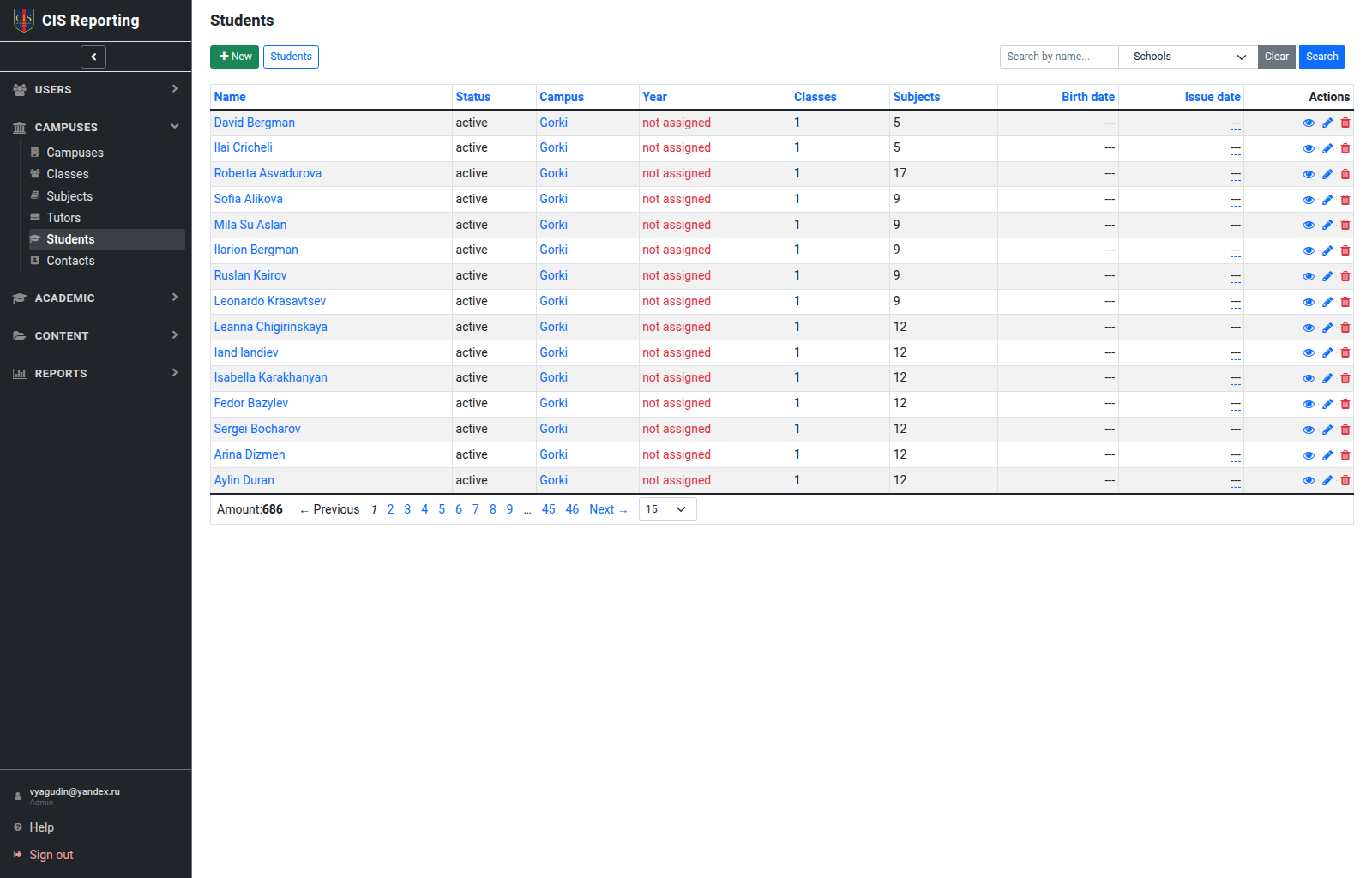
List
Name, campus, classes, contacts, status; Show / Edit / Delete and a link to Assessment. Search and filters; New Student.
A student can be enrolled in more than one class. Use the Classes tab on the student card (or the Students tab on a class) to add further classes.
System Admin can open Deleted on the students list and Restore a student. Delete hides the record (red deleted label); restore brings back class, subject, and contact memberships and unlocks the student login if one exists. See Permissions — Delete and restore.
Student card
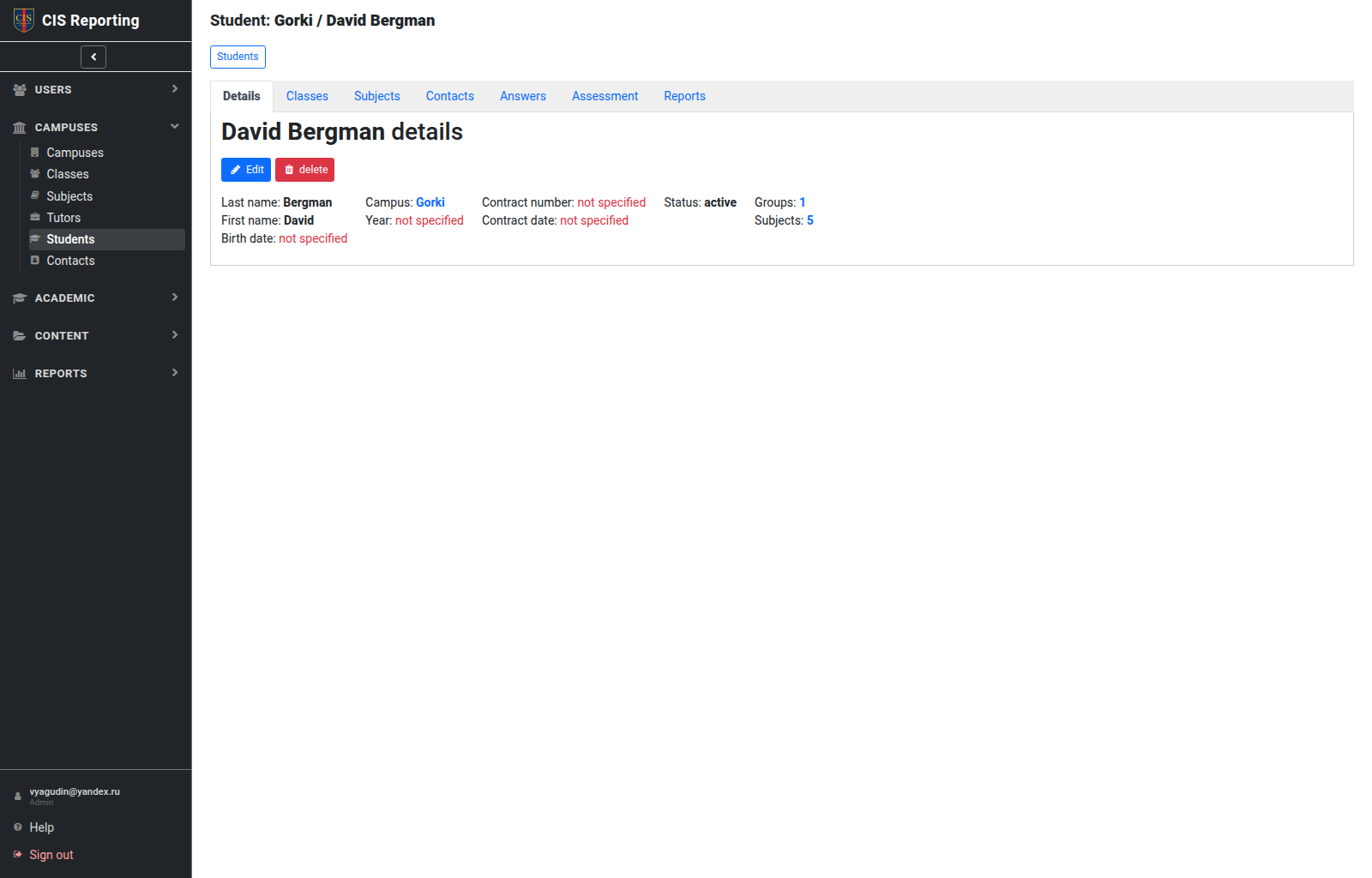
Tabs:
| Tab | Purpose |
|---|---|
| Details | Personal details |
| Classes | Class enrolment |
| Subjects | Subjects |
| Contacts | Parents/contacts (not for Simple tutor) |
| Answers | Saved answers |
| Assessment | Enter marks/answers |
| Reports | Student reports |
| Changes | Field history and linked classes, subjects, and contacts (system Admin) |
Typical actions
- Create a student and set the campus.
- Enrol in one or more classes and on subjects.
- Link contacts (admin / secretary / local).
- Fill in Assessment for the right term → create a Report.
Who can
| Action | Admin / Global | Local | Simple | Secretary | Student |
|---|---|---|---|---|---|
| List / create | ✓ | ✓ campus | read campus; edit own | ✓ | — |
| Assessment | ✓ | ✓ | subject primary tutor | read | — |
| Reports | ✓ | ✓ | own | ✓ | own only |
| Contacts | ✓ | ✓ | — | ✓ | — |