Classes
← Table of contents · Permissions
In the UI the section is called Classes. In the data these are Group records.
What this section is for
A class groups students of the same year/stream on a campus. Tutors, subjects, question groups, and batch report generation are linked through the class.
How to open
Menu: Campuses → Classes (for Local admin: Campus → Classes; for Simple tutor: Classes and My classes).
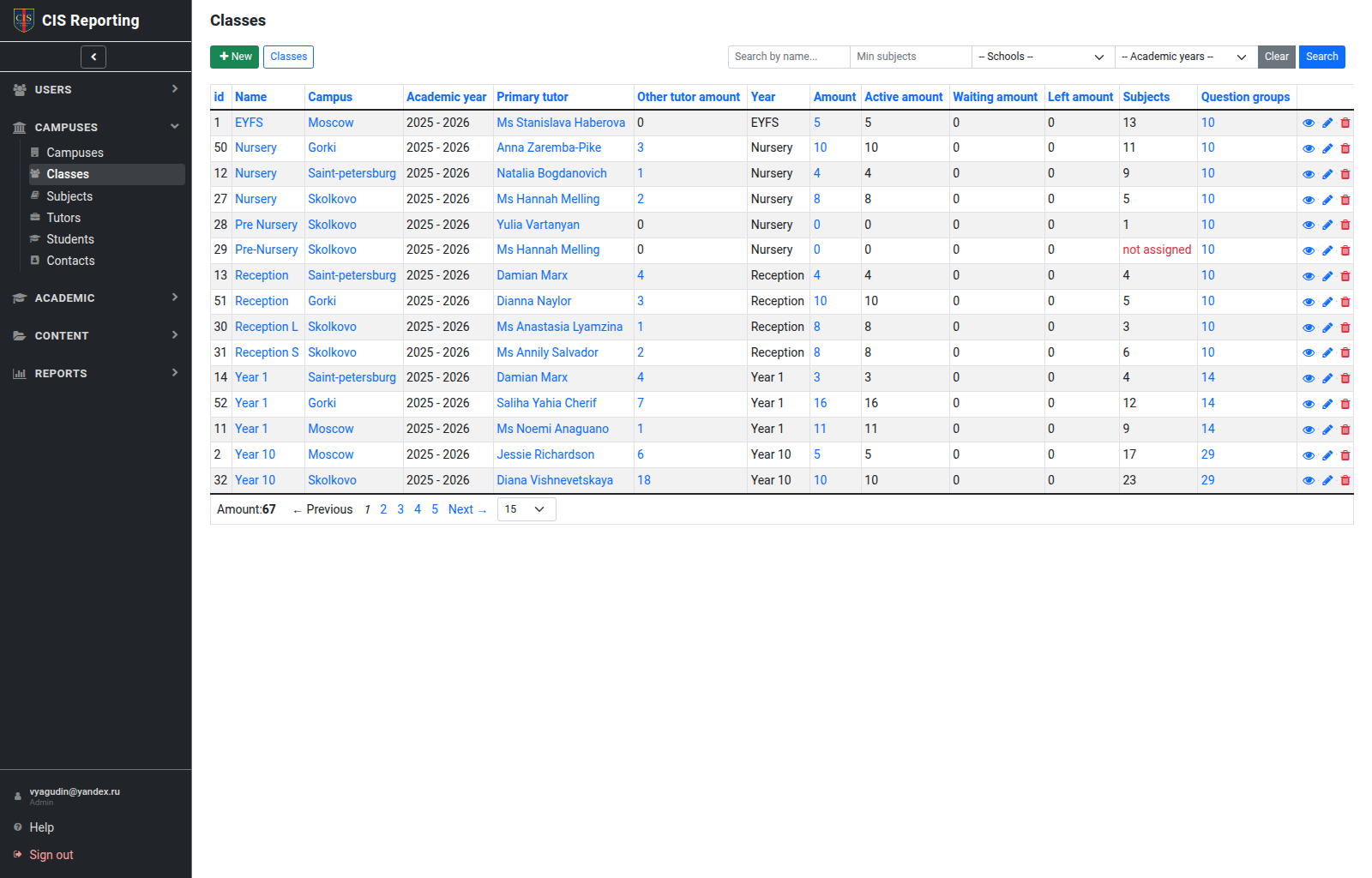
Classes list
- name, campus, academic year;
- linked tutors, students, subjects;
- view / edit / delete actions;
- for a tutor’s own classes — batch reports, if the UI shows it.
Filters and New Class are available if you have permission.
System Admin can open Deleted on the classes list and Restore a class. Delete hides the record (red deleted label). See Permissions — Delete and restore.
Class card
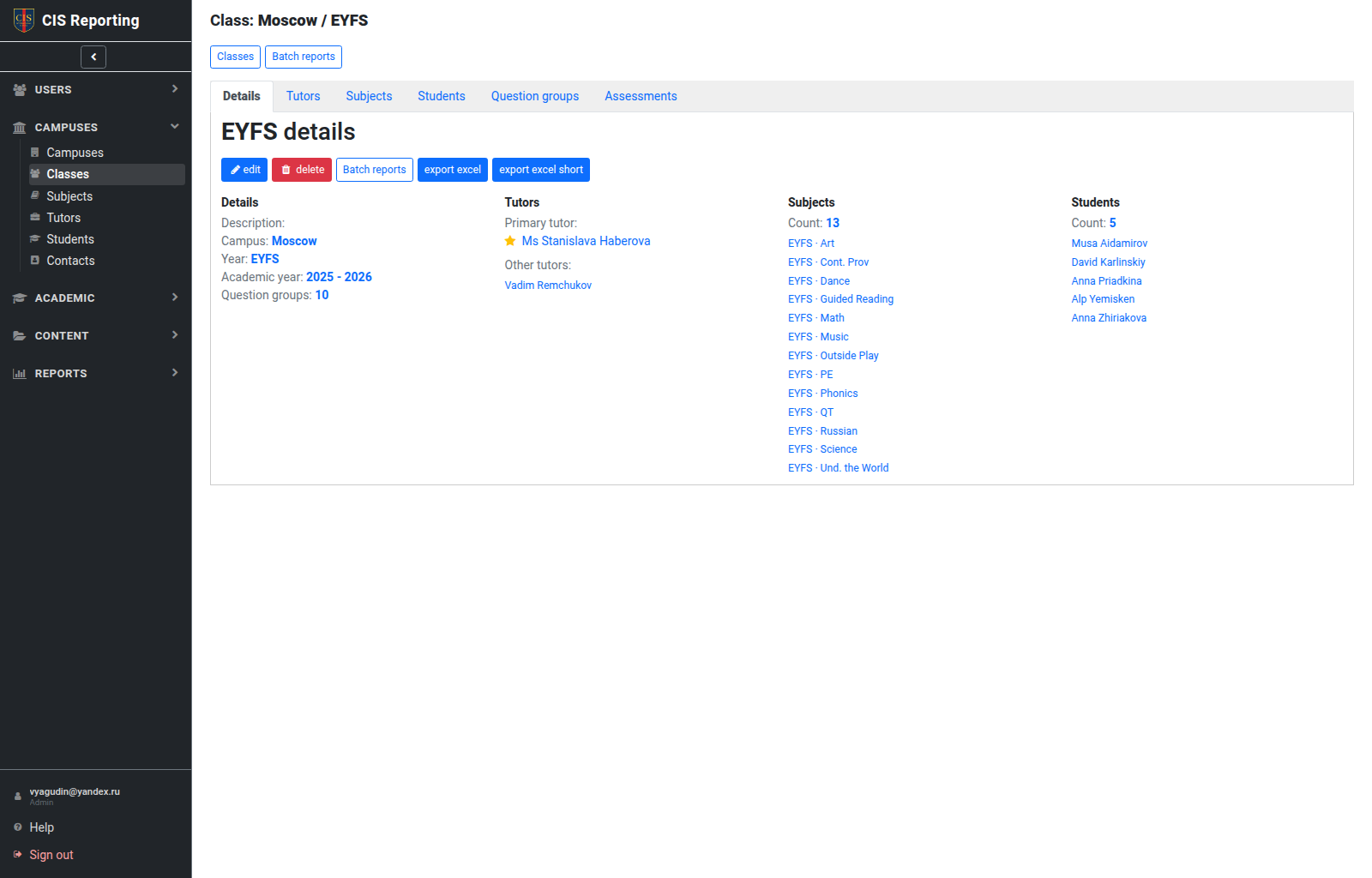
Tabs:
| Tab | Contents |
|---|---|
| Details | Class fields |
| Tutors | Teachers of the class |
| Subjects | Subjects of the class |
| Students | Class enrolment |
| Question groups | Linked question groups (Admin assigns; Global / Local tutor admin view only) |
| Assessments | Assessment (Simple tutor: only if they are a subject's primary tutor) |
A new class is automatically linked to the All general question group. Attitude, attributes, and All general groups are class only — assign them on the class, not on a subject. See Content.
A student may belong to more than one class — see Students.
Typical actions
- Create a class — New Class; set campus and year. All general is assigned automatically.
- Add students — Students tab (students can already be in another class).
- Link subjects and tutors.
- Batch reports — the batch reports action on the class (admins and Simple tutor for their classes).
Who can
| Action | Admin / Global | Local | Simple | Secretary |
|---|---|---|---|---|
| View | ✓ | ✓ campus | ✓ campus | ✓ |
| Manage | ✓ | ✓ campus | edit own classes; links for own subjects | ✓ |
| Set primary tutor | ✓ | ✓ campus | own class links | ✓ campus |
| Batch reports | ✓ | ✓ | own classes | ✓ |
| View linked QG | ✓ | ✓ campus | — | — |
| Assign QG | Admin only | — | — | — |