CIS Reporting — User guide
CIS Reporting is the web system for CIS campuses: structure (campuses, classes, subjects, tutors, students), entering marks and answers, and generating PDF reports.
The application UI is in English. Menu names in this guide match the labels in the app.
Quick start
- Open the system URL and sign in with email and password — Sign in.
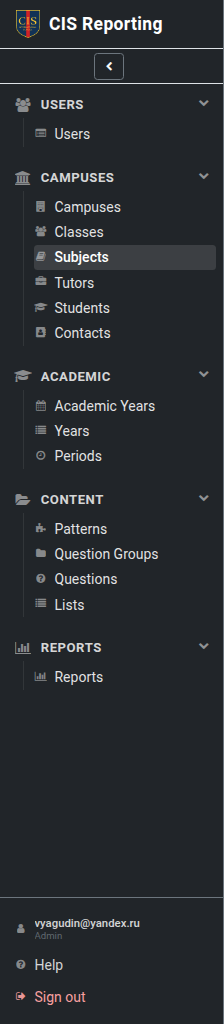
- In the left menu, open the section you need (the items depend on your role).
- A typical tutor path is: Subjects / Classes → Students → Assessment (choose the term) → Reports. Simple tutors who are not a subject's primary tutor skip Assessment.
Contents
| Document | UI section | About |
|---|---|---|
| Sign in | Sign in / Account | Sign in, sign out, profile |
| Permissions | — | Roles and what each role can do |
| Campuses | Campuses | Campuses |
| Classes | Classes | Classes (groups) |
| Subjects | Subjects | Subjects |
| Tutors | Tutors | Tutors and assignments |
| Students | Students | Students |
| Assessment | Assessment | Entering answers |
| Contacts | Contacts | Parents and contacts |
| Reports | Reports | Creating reports and PDFs |
| Academic | Academic Years / Years / Periods | Years and periods |
| Content | Patterns / Question Groups / Questions / Lists | Report templates |
| Users | Users | User accounts |
Roles (summary)
| Role in the UI | Who it is |
|---|---|
| Admin | System administrator |
| Global tutor admin | Admin for all campuses (tutor) |
| Local tutor admin | Admin for one campus |
| Simple tutor | Teacher |
| Secretary | Campus secretary |
| Student | Student (own reports only) |
Full matrix: Permissions.
Typical workflows
Set up the structure (admin / local admin / secretary)
- Campus → classes and subjects
- Tutors → assign to classes and subjects
- Students → enroll in classes (a student may be in more than one class) and on subjects
- (Admin) Question Groups on subjects/classes, Patterns for reports. New classes get All general automatically.
Assessment and report (tutor)
- Students → student card → Assessment tab (only a subject's primary tutor, among Simple tutors)
- Choose the term, then fill in answers (they save automatically; each term has its own answers)
- Reports tab or the Reports section → create a report for that Period → Generate PDF
Built-in help
Most screens have a short hint at the bottom of the page, or via Help in the sidebar.